Navigate to the "Management Center" > "Financial Management" > "Recharge" > "Payment Settings" page, where you can enable or disable the auto top-up/backup payment settings. The system defaults to having these features turned off, requiring you to manually activate them.
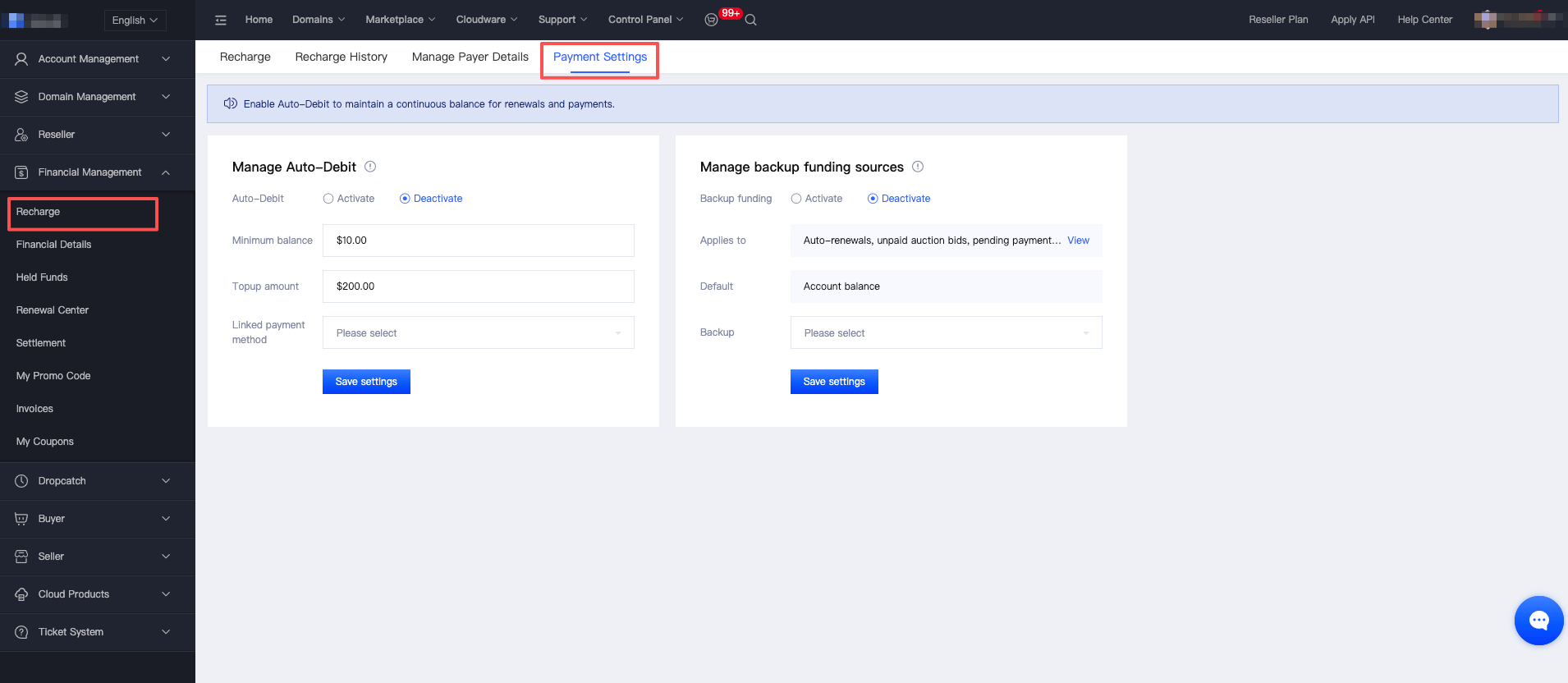
I. How to Enable Auto Top-Up Settings
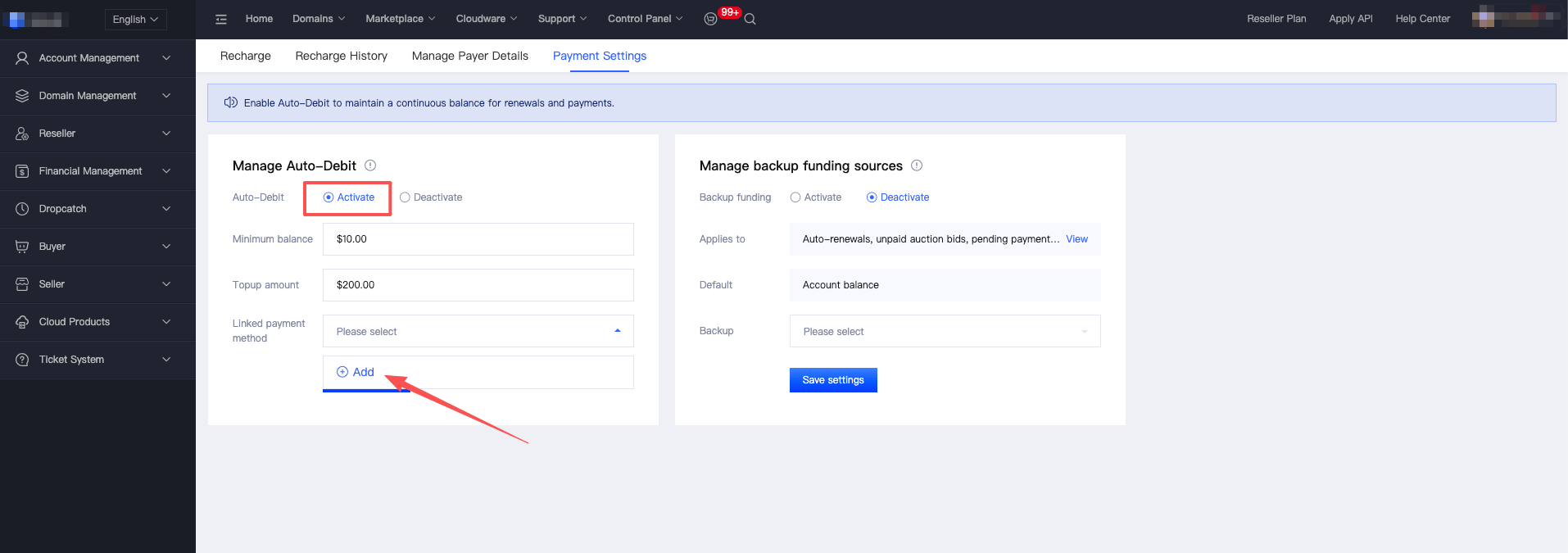
1. Click "Enable Auto Top-Up" to set up the auto top-up rules you need. Click to select the drop-down option for "Linked payment method" (Currently, the supported type of bound contracted payment deduction is only authorized credit cards. More types are under development. We will notify you as soon as they are officially launched. Please stay tuned). If you haven't added and bound a credit card, you need to do so.
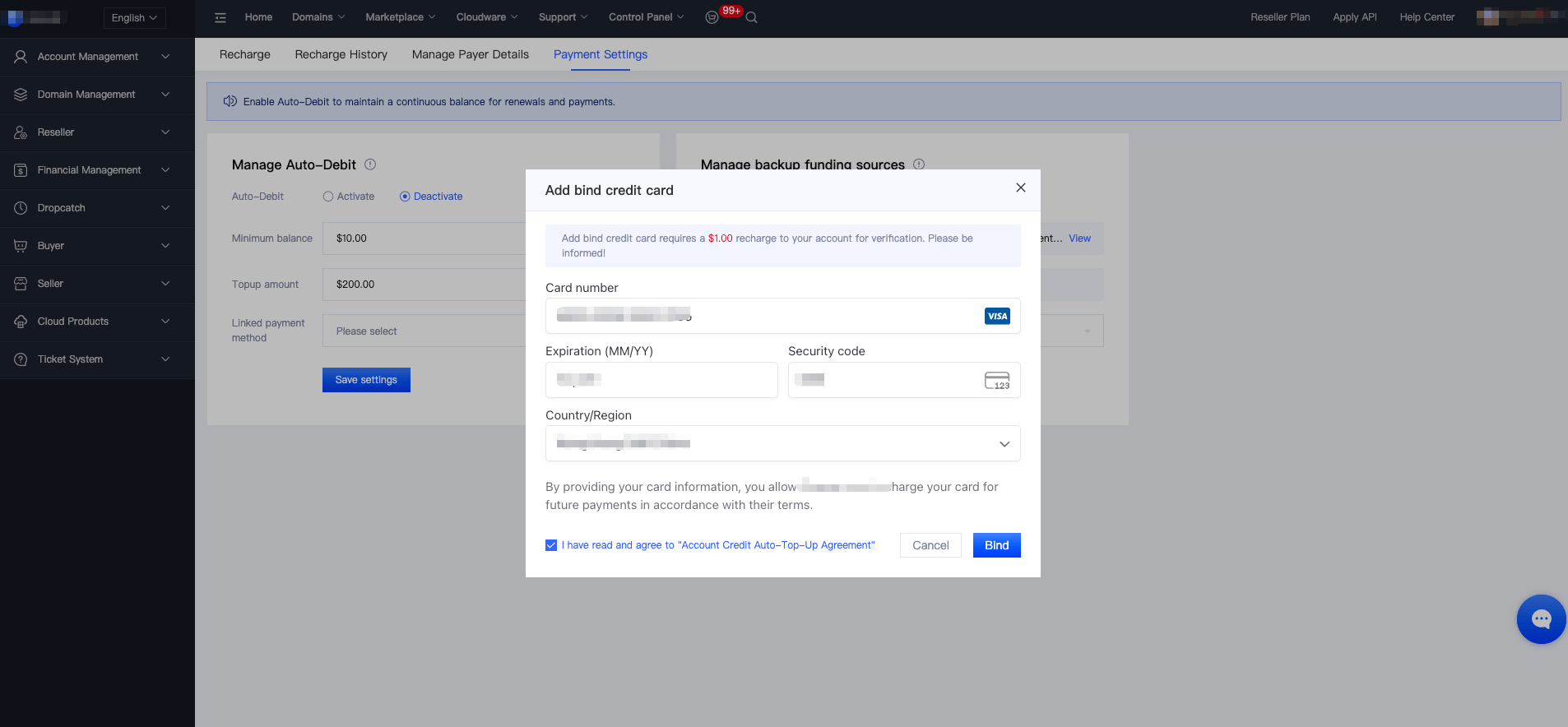
2. Add and bind a credit card: Enter the credit card information for binding according to the prompts in the pop-up box, and then click "Bind".
3. After completing the recharge verification, the binding will be finished. Click "Save Settings" to activate the automatic recharge setup.
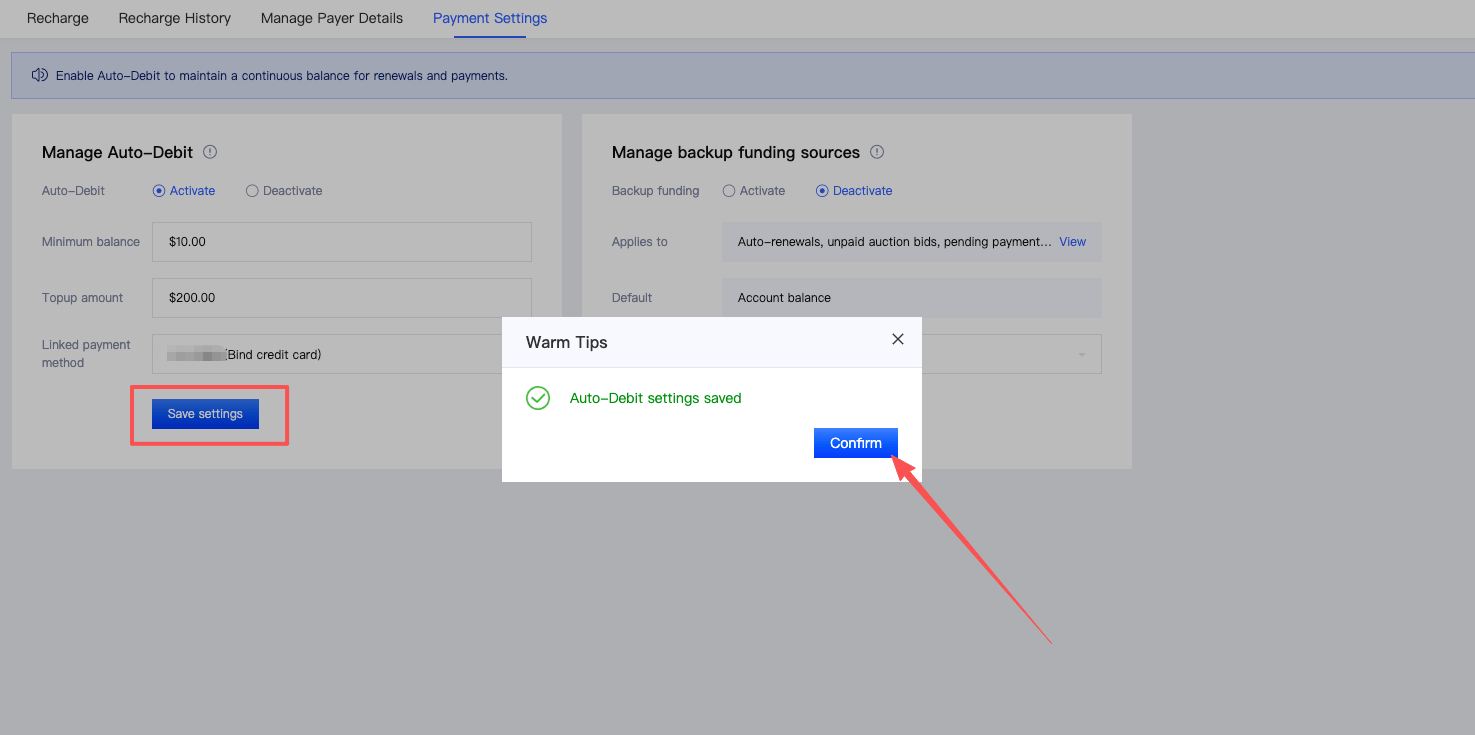
4. If you have already added and bound a credit card in "Manage Rechargers", simply select the bound credit card from the drop-down options in "Bind Contracted Payment Deduction", and then click "Save Settings" to activate the automatic recharge setup.
II. How to Enable Backup Payment Settings
1. Click "Enable Backup Payment" and select the drop-down option for "Backup Payment Method" (Currently, the bound contracted payment deduction type only supports authorized credit cards. More types are under development and will be notified to everyone as soon as they are officially launched. Please stay tuned.). If you haven't added and bound a credit card, you need to do so.
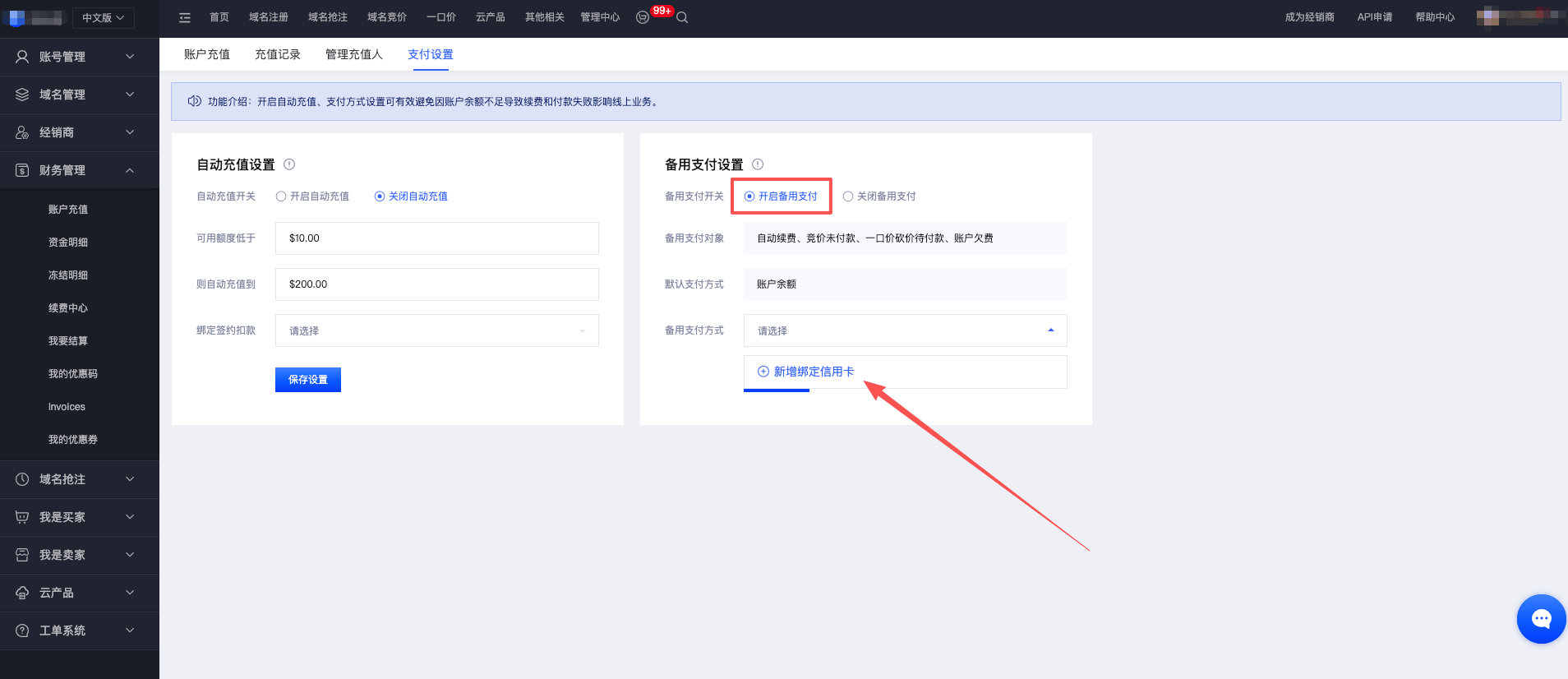
2. To add and bind a credit card: Enter the credit card information as prompted in the pop-up box, and click "Bind".
3. After completing the recharge verification, the binding process will be finished. Click "Save Settings" to activate the automatic recharge feature.
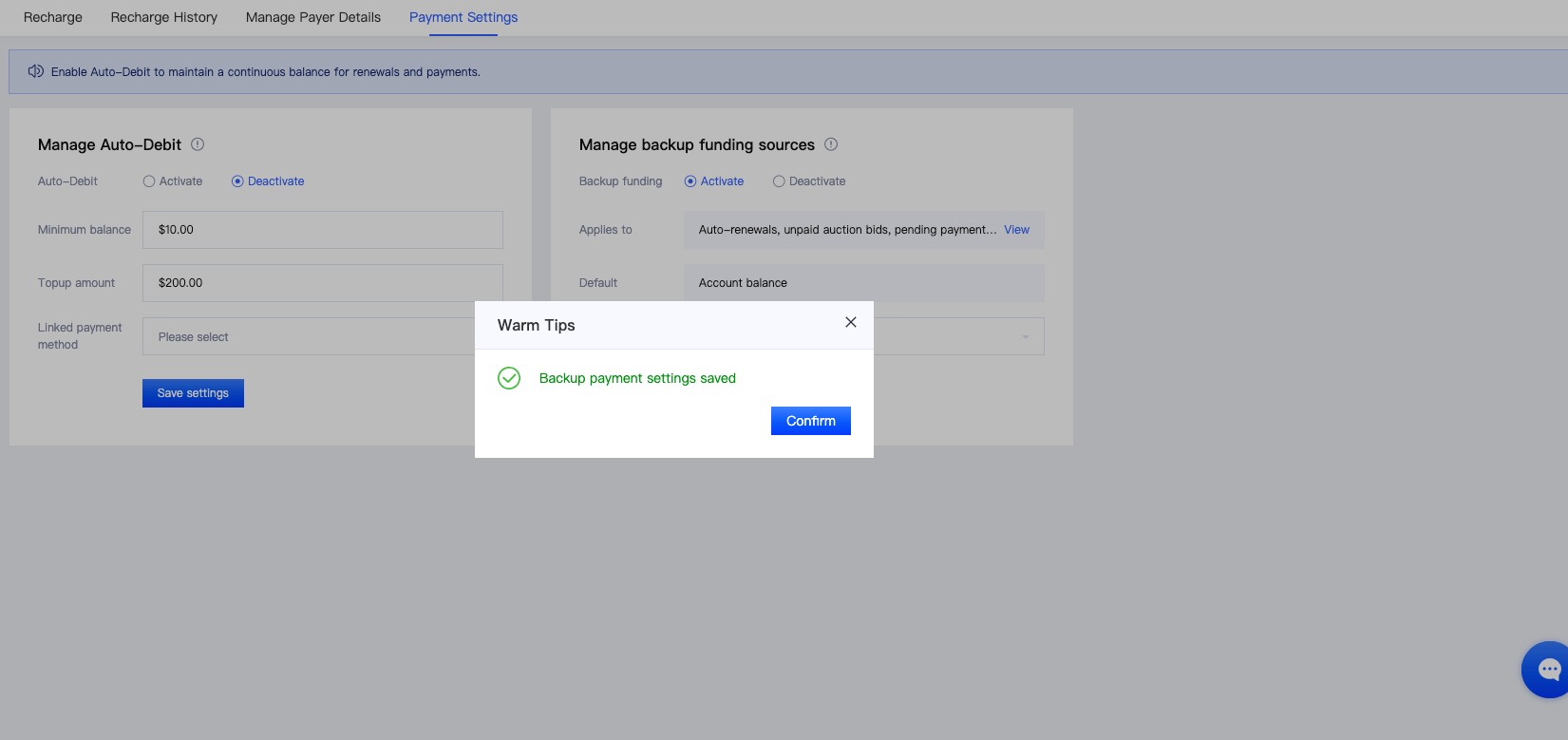
4. If you have already added and bound a credit card in "Manage Rechargers", simply select the bound credit card from the drop-down options under "Backup Payment Method" and click "Save Settings" to activate the backup payment setup.